 ShareMix
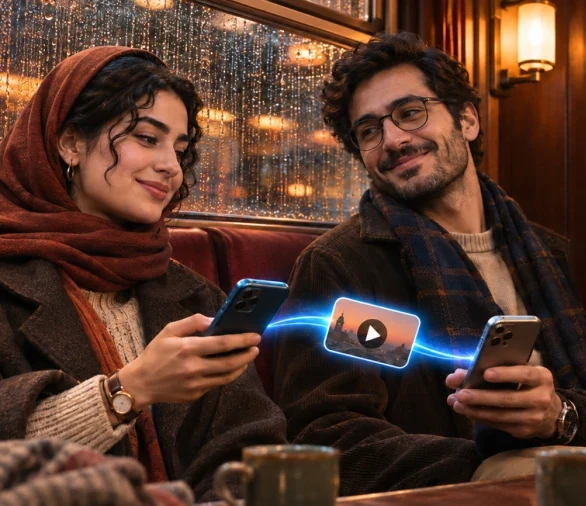
When the other phone is right beside you
If you are sending party photos or a large video to someone nearby, a local connection can carry the files directly between the devices. Wi-Fi needs to be available, but the file does not need to go through a messaging service or cloud upload.
Send files with a ShareMix QR code
- On the receiving Android phone, open ShareMix and tap Receive to show its QR code.
- On the sending phone, tap Send and select the photos, videos or documents.
- Scan the receiver’s code from ShareMix and keep the transfer screen open until it completes. Open the file on the receiving phone to check it.
If the receiving phone doesn’t appear
Bring the phones closer, turn on Wi-Fi and check the Nearby devices permission. Older Android versions may also require location permission for discovery. If the transfer starts and then stops, check free storage on the receiving phone and retry with one small photo.
Videos, folders and Android app files
Choose the actual video file stored on your device. Video available only inside a streaming service may not be available as a shareable file. Sending an Android installer does not carry along accounts, app data or game saves.
If one phone is an iPhone
Open WebShare or PC Connect in ShareMix and use the address it shows on the receiving device. Follow our Android-to-iPhone guide for the browser workflow.